Quick Launch Studio
Install your website
You’ve filled in your website. Now it goes on your own WordPress hosting. You’ll need two downloads from your website’s page: your site file (Get my site file) and our plugin (Download the plugin). It takes about 15 minutes once your hosting is ready.
1Get WordPress hosting
Any host that runs WordPress will do. When you choose one, look for:
- One-click WordPress: the host installs WordPress for you.
- PHP 8.2 or newer and WordPress 6.5 or newer (most hosts have these already).
- A free security certificate (SSL), so your address starts with https://.
- Your domain: connect the one you have, or buy one with the hosting.
- Daily backups, so a mistake is easy to undo.
Install WordPress with your host’s installer, then sign in to your WordPress dashboard (your address followed by /wp-admin).
2Upload our plugin
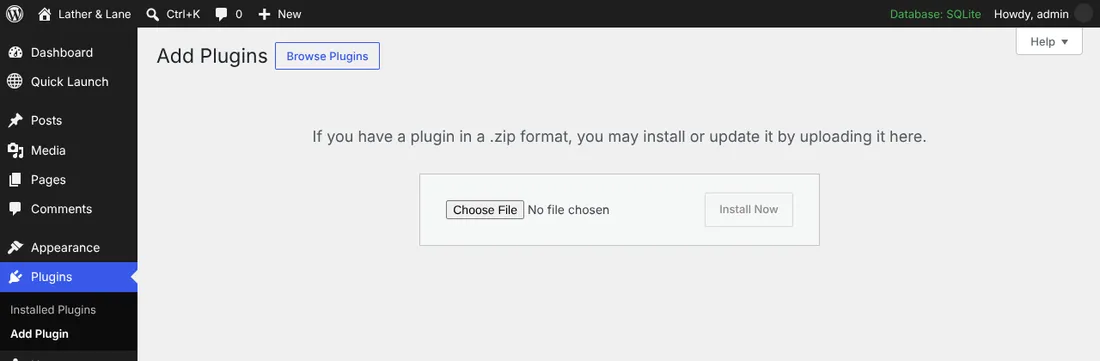
In your WordPress dashboard go to Plugins → Add New Plugin → Upload Plugin. Choose the plugin you downloaded (quicklaunch-studio-….zip, don’t unzip it), press Install Now, then Activate.
3Add your site file
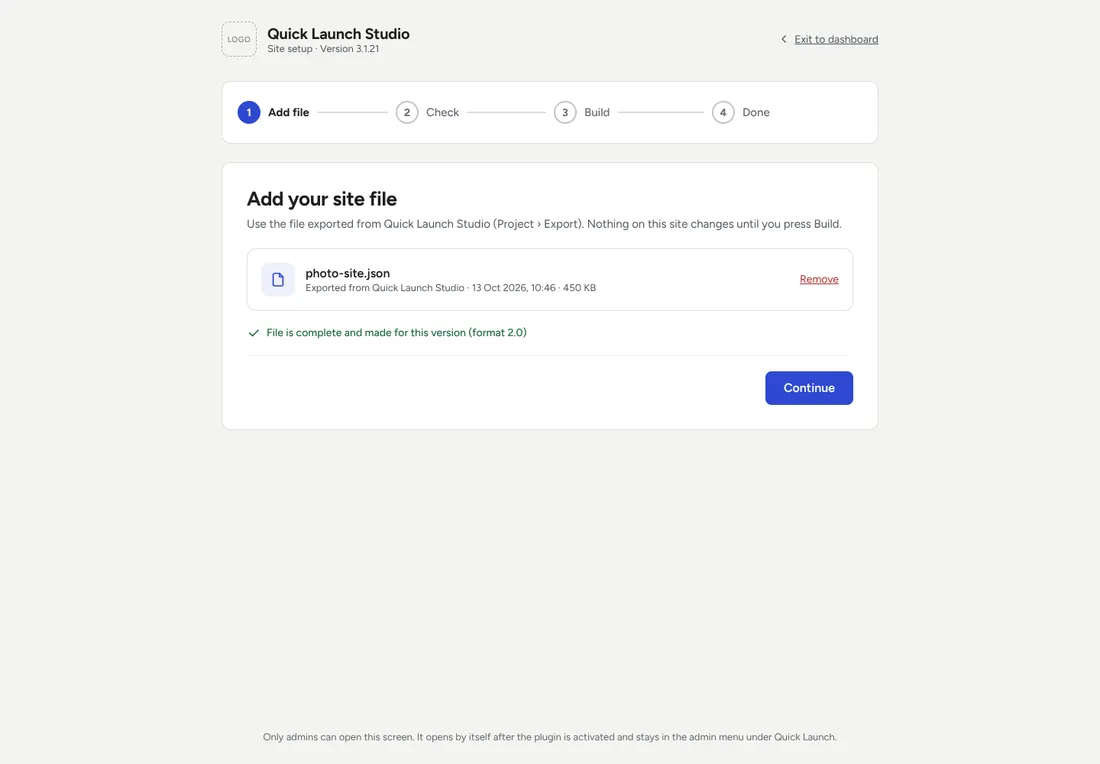
The Quick Launch site setup opens by itself (later you’ll find it in the menu under Quick Launch). Choose your site file (quicklaunch-blueprint-….json) and press Continue.
4Check what will be built
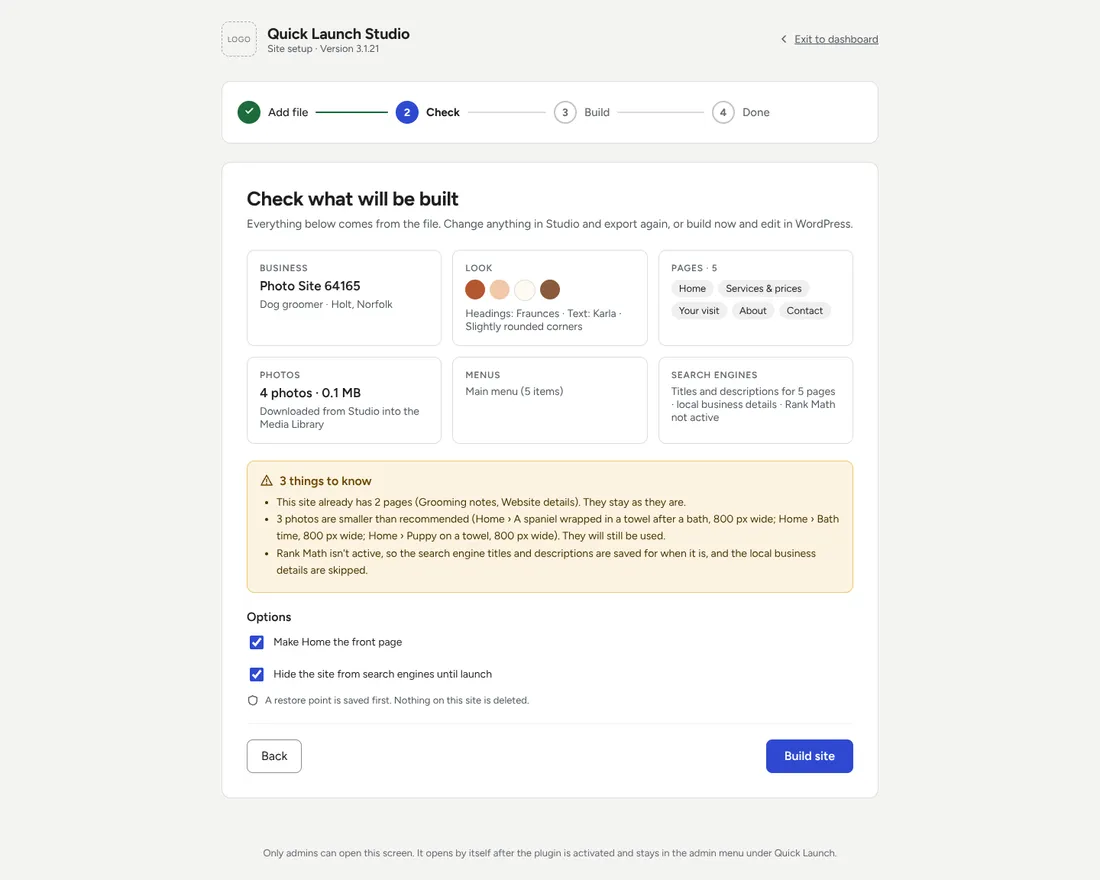
You’ll see your business, look, pages, photos and menus from the file. Read the “things to know”. Leave Make Home the front page ticked. Hide the site from search engines until launch keeps Google away while you check it.
Nothing on your site is deleted: a restore point is saved first. Press Build site.
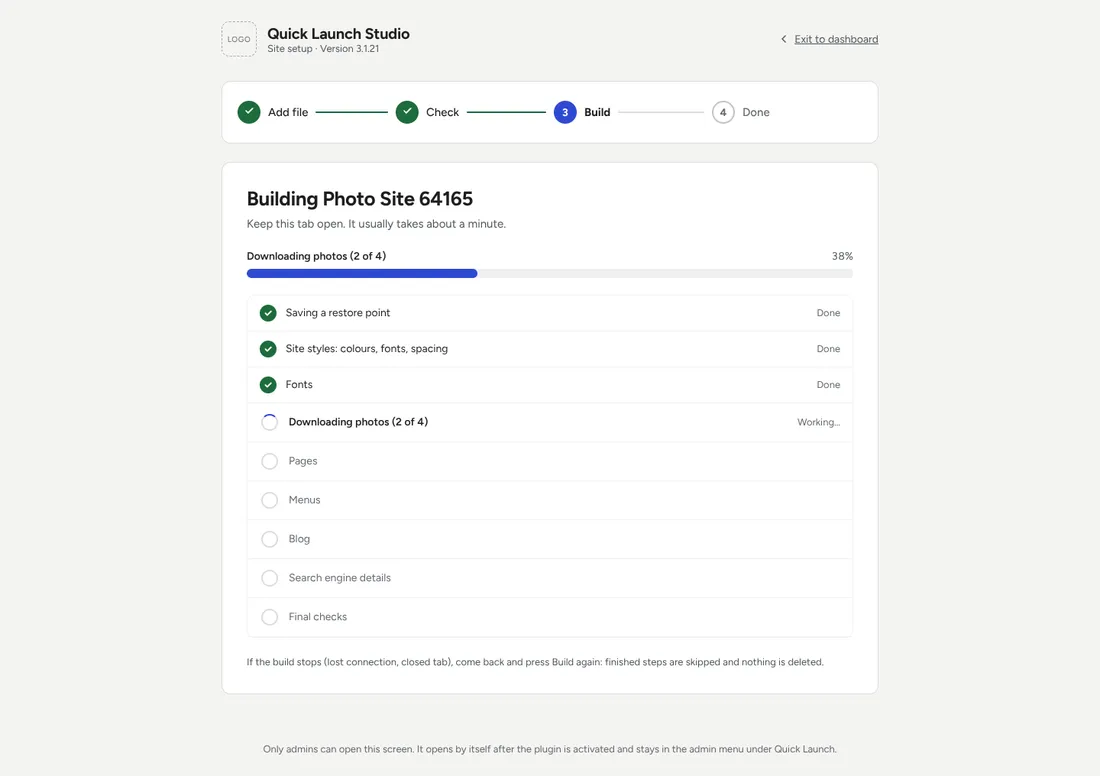
5Build
Your pages, menus, look and photos are put in. Keep the page open until it finishes; if it stops, open it again and press Build site to carry on.
6Check your site
Press View site and look at every page, on a phone too. Change anything in WordPress (Edit pages, Site styles). Changed your mind about something big? Change it on your website’s page in the Studio, press Get my site file again, and use Build again from a new file.
When you’re ready for visitors, turn search engines back on in Settings → Reading (untick “Discourage search engines”).
Send yourself a test enquiry from your contact form. If it doesn’t arrive or lands in spam, a free Brevo account with an SMTP plugin sends your site’s email properly.
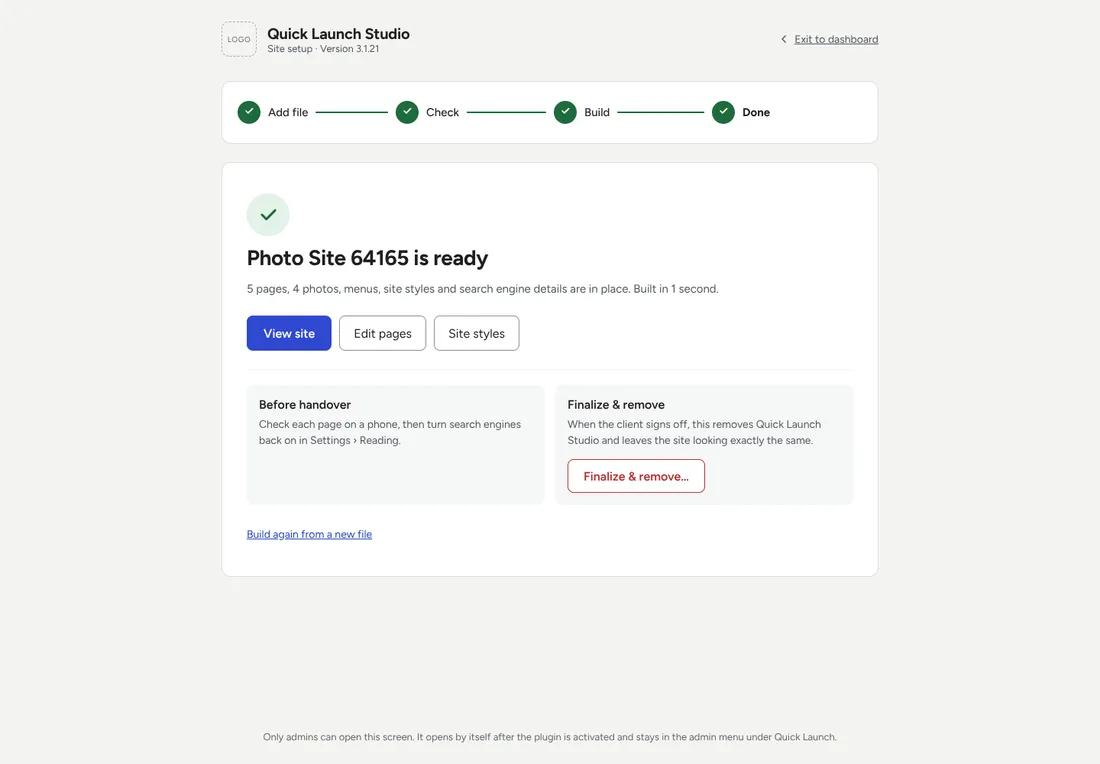
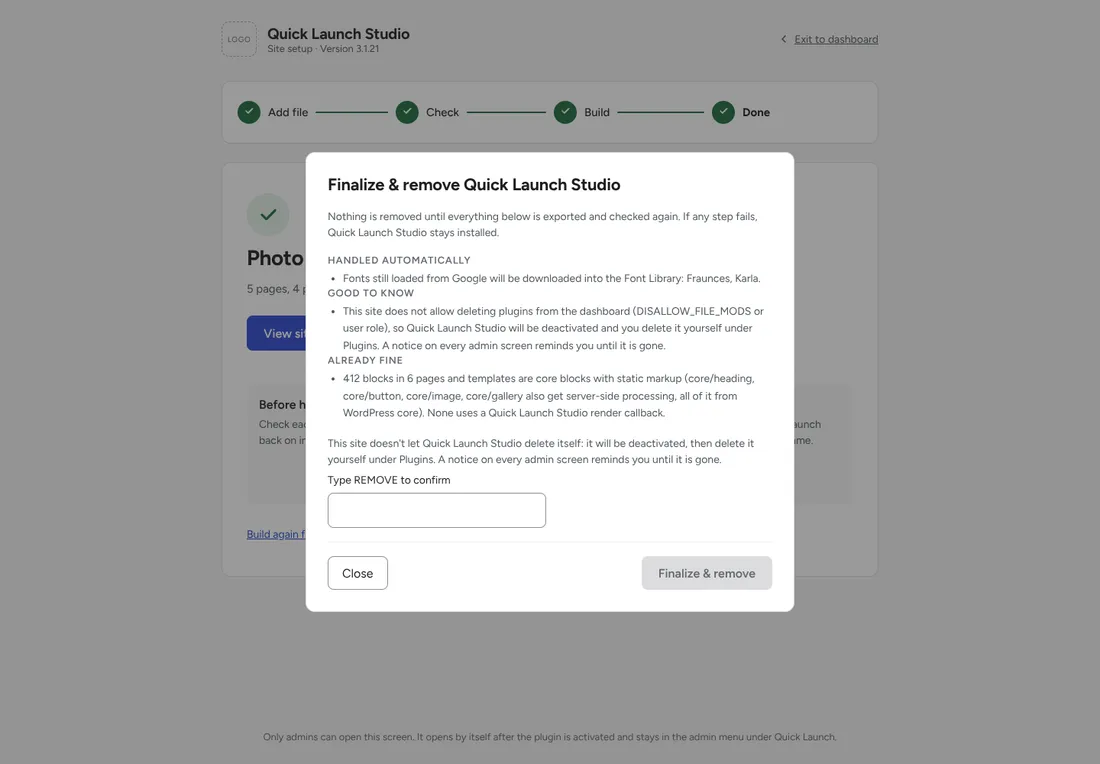
7Finalize & remove
When you’re happy, press Finalize & remove. It checks everything first, then removes our plugin and leaves your site looking exactly the same: plain WordPress that is yours.